
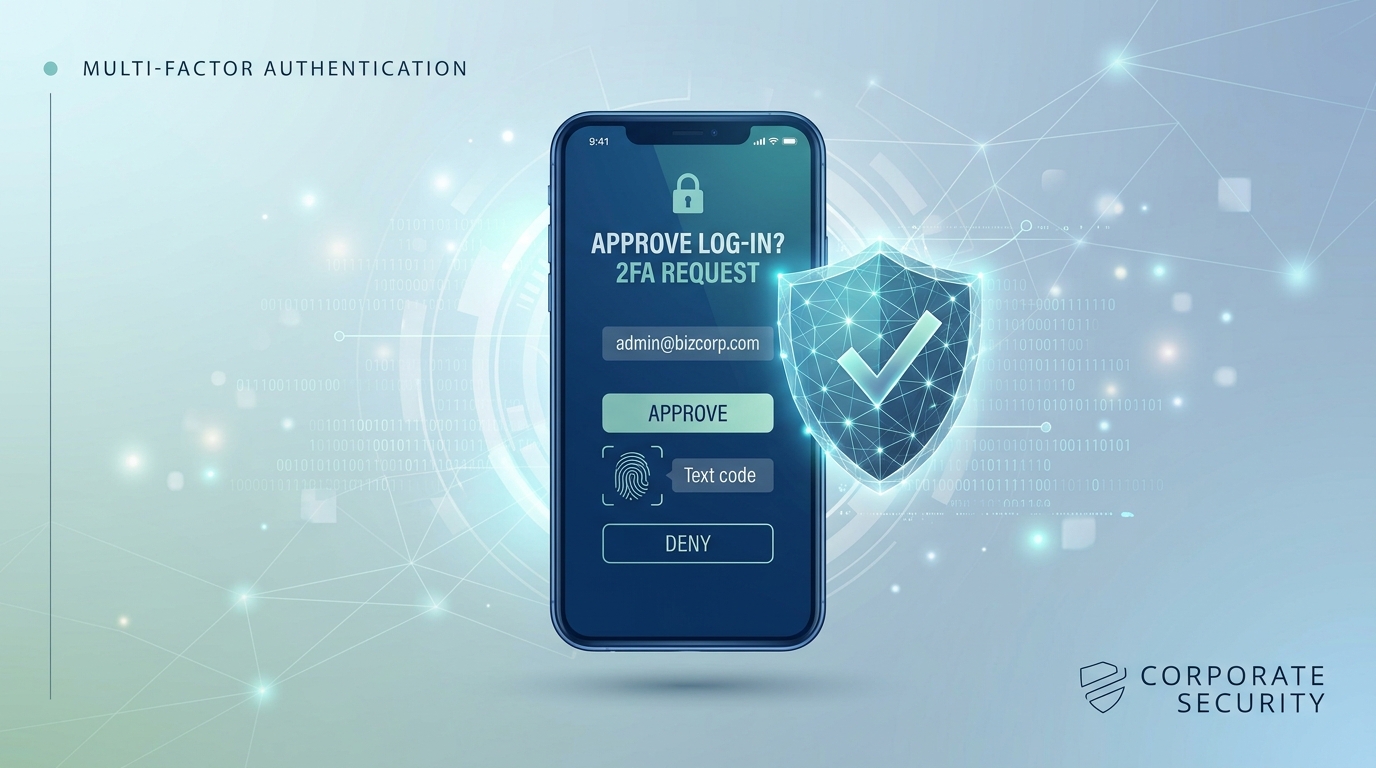
This multi-factor authentication setup guide covers everything you need to protect your business online this year. Multi-factor authentication (MFA) is the single most effective — and cheapest — security step a small business can take. According to Microsoft’s security research, it can prevent 99.9% of automated account-takeover attacks, even when a password has already been stolen. Best of all, most of it is free, and you can start turning it on this afternoon.
This guide walks through what MFA actually is, how to set it up across your most important accounts, which method to choose, and how to roll it out to a team without causing chaos.
What Is Multi-Factor Authentication?
Multi-factor authentication requires two or more distinct types of proof before granting access to an account — typically something you know (a password) combined with something you have (a code from your phone) or something you are (a fingerprint). Because MFA requires multiple types of evidence rather than a single password, it’s dramatically harder for an attacker to break in, even if they’ve already stolen your login credentials through phishing or a data breach. CISA’s guidance on MFA is a useful reference for the underlying reasoning if you want to go deeper.
The Three Core Factor Types
- Knowledge factors — passwords, PINs, security questions
- Possession factors — a phone with an authenticator app, a hardware security key, a code sent by SMS
- Inherence factors — fingerprint, face recognition, voice pattern
Most small business MFA setups combine a password with a possession factor, since that balance offers strong protection without requiring specialized hardware for every employee.
Why Small Businesses Specifically Need This
Nearly 43% of cyberattacks target small businesses, and a large share of these succeed simply because a password was reused, guessed, or phished. MFA closes that gap directly: even if an attacker has your password, they still can’t get in without the second factor. For a security control that costs nothing to a few dollars per user per month, the return on investment is hard to match.
Choosing an MFA Method
Authenticator Apps (Recommended Starting Point)
Apps like Google Authenticator, Microsoft Authenticator, and Duo Mobile generate a rotating code on your phone. They’re free, don’t require cell signal to work, and are significantly more secure than SMS-based codes.
SMS/Text Message Codes
The simplest option to explain to employees, but the least secure — SIM-swapping attacks can intercept SMS codes. Acceptable as a starting point, but plan to migrate to an authenticator app or hardware key over time.
Hardware Security Keys
Physical devices (like a YubiKey) that plug in or tap via NFC. The strongest protection available, and increasingly recommended for admin accounts and anyone handling sensitive financial or customer data, though the upfront hardware cost makes it less practical for rolling out to an entire large team at once.
Push Notifications
Apps like Duo or Microsoft Authenticator can send a simple “Approve/Deny” prompt instead of a code to type. Fast and user-friendly, though it does carry a known risk of “MFA fatigue” attacks, where an attacker spams approval requests hoping an employee accidentally taps approve — worth covering explicitly in employee training.
Step-by-Step Multi-Factor Authentication Setup Guide
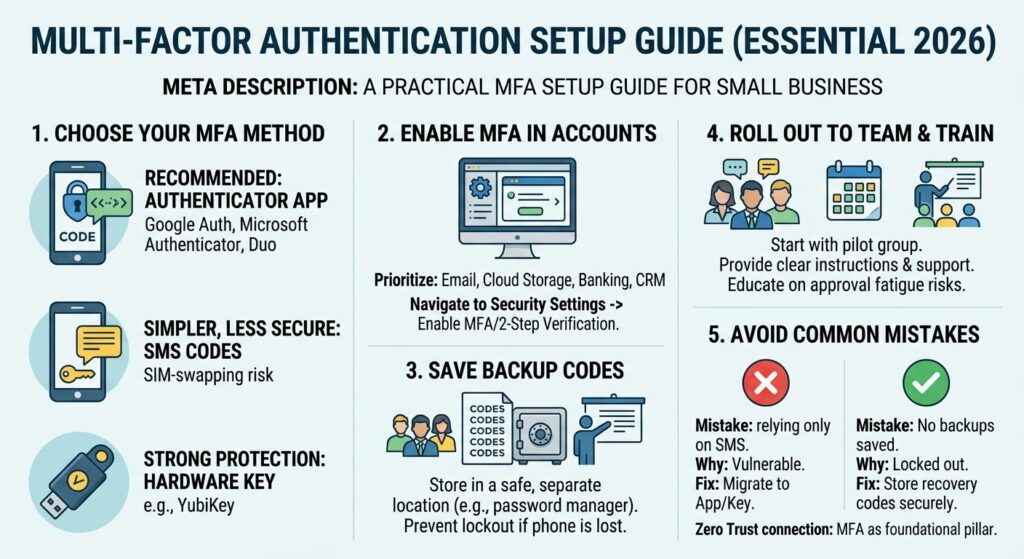
- Prioritize your most critical accounts first — email platforms, cloud file storage (Google Drive, OneDrive), banking and financial accounts, and your CRM
- Choose your primary method — an authenticator app is the best default for most small teams
- Enable MFA in each account’s security settings — look under Settings → Security (or “Sign-in & security”) for “Two-factor authentication” or “2-step verification,” then choose the authenticator-app option and scan the QR code
- Save backup/recovery codes somewhere secure and separate from the device running your authenticator app — losing your phone shouldn’t mean losing account access
- Test the full sign-in flow, including account recovery, before rolling it out beyond a pilot group
- Roll out in phases — start with a small pilot group, gather feedback, then expand company-wide
- Document the process with a simple internal guide so new hires and less technical staff can self-serve
Rolling MFA Out to a Team
Employee resistance is one of the most common obstacles to MFA adoption — some staff will see it as an inconvenience. A few things genuinely help:
- Explain the “why” briefly rather than just mandating it — a short explanation of what MFA actually prevents tends to reduce pushback
- Offer hands-on setup support during the first week rather than a link and no follow-up
- Start with free/low-cost tools (Google Authenticator, Microsoft Authenticator, Duo’s free tier) before evaluating paid enterprise MFA platforms
- Build MFA into your onboarding checklist so every new hire sets it up on day one, not as an afterthought
Common MFA Setup Mistakes
| Mistake | Why It’s a Problem | Fix |
|---|---|---|
| Relying only on SMS codes long-term | Vulnerable to SIM-swapping | Migrate to an authenticator app or hardware key |
| No backup/recovery codes saved | Locked out if the phone is lost | Store recovery codes in a secure password manager |
| MFA only on “important” accounts | Attackers target the weakest link, not the most obvious one | Apply MFA broadly, prioritized by sensitivity, not guesswork |
| No employee training on approval-fatigue attacks | Push-notification MFA can be socially engineered | Train staff to reject unexpected approval requests and report them |
| Treating MFA as a one-time project | New tools and accounts get added without MFA over time | Review MFA coverage quarterly as part of a regular security check |
Cost Expectations
MFA for small business typically runs $1-$5 per user per month for a dedicated platform, depending on features and the number of integrated applications — though many core tools (Google Authenticator, Microsoft Authenticator, and the basic tiers of platforms like Duo) are free to start with. Most small businesses can implement strong baseline MFA coverage without any dedicated security budget at all.
MFA and Zero Trust: How They Connect
MFA is one of the foundational building blocks of a broader Zero Trust approach to security — the idea that no user or device should be automatically trusted, even inside the network. If your business is also evaluating a more complete Zero Trust or SASE strategy, our Forcepoint SASE guide covers how identity-based access controls like MFA fit into a larger secure-access architecture.
FAQs
Is multi-factor authentication really necessary for a small business? Yes. With 43% of cyberattacks targeting small businesses, and MFA capable of preventing up to 99.9% of automated account-takeover attempts according to Microsoft’s research, it’s one of the highest-impact, lowest-cost security measures available.
What’s the difference between MFA and 2FA? Two-factor authentication (2FA) is a specific type of MFA that uses exactly two factors. MFA is the broader term and can involve two or more factors.
Which MFA method is most secure? Hardware security keys offer the strongest protection, followed by authenticator apps. SMS-based codes are the weakest option due to SIM-swapping risk, though still better than no MFA at all.
How long does it take to roll out MFA across a small business? A phased rollout — pilot group, feedback, then company-wide — typically takes a few weeks for a small team, most of which is spent on employee training and support rather than the technical setup itself.
Can employees get locked out of their accounts with MFA enabled? It’s possible if a device is lost and no recovery codes were saved. Always generate and securely store backup codes during setup to prevent this.
Final Thoughts
Multi-factor authentication is the rare security measure that’s both genuinely effective and genuinely accessible — no large budget or dedicated IT team required. Start with your most critical accounts, choose an authenticator app over SMS where possible, save recovery codes before you need them, and roll it out to your team in phases with real support, not just a mandate. Of all the steps in this guide, this is the one with the best ratio of effort to protection — there’s no good reason to wait.